|
 |  |
| While PlayCenter has evolved over the years to its 3rd version, Creative MediaSource is a whole new application suite, developed from ground up, with a fundamentally different platform & architecture.
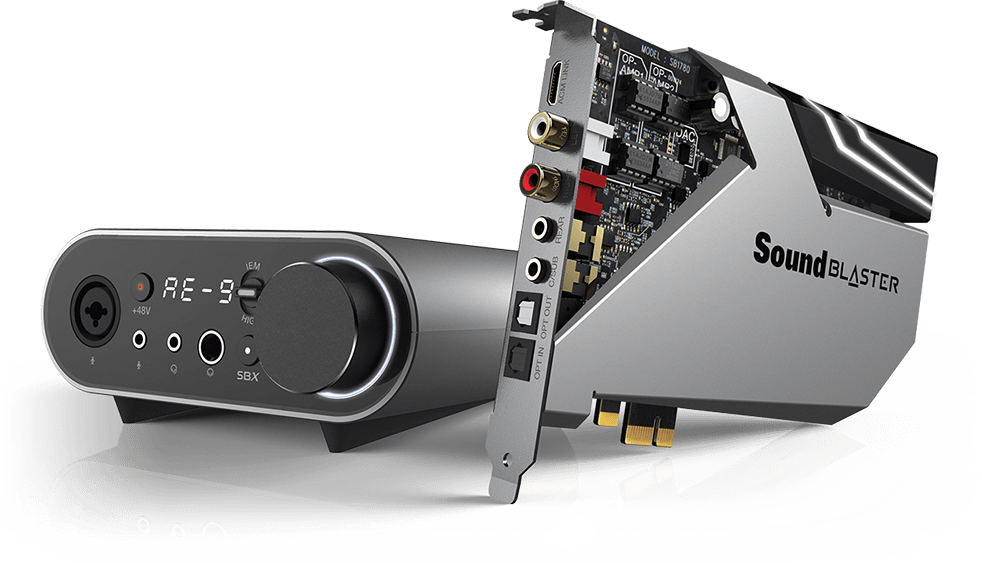
Key features that have proven to be useful in PlayCenter will be retained & enhanced. In addition, Creative MediaSource will include many new features designed to harness the phenomenal sonic power and quality of the Creative Sound Blaster Audigy2 soundcard.
The table below shows the key features and differences between Creative PlayCenter 3.0 and Creative MediaSource:
|
FEATURE |
CMS2 |
CMS1 |
PLAYCENTER |
|
PLAYBACK |
Supported Media Format : |
| Audio Format Supported: MP3, WMA, WAV, Audio CD, MIDI, AC3 and NVF |
YES |
YES |
YES |
| For Audigy 2 & 2ZS only: DVD-Audio, MLP, up to 7.1 channel playback, DTS CD |
YES |
YES |
NO |
| Video Format Supported: AVI, VCD, MPEG |
YES |
YES |
YES |
| EAX ADVANCED HD |
| Effects (Env, Special FX, Adv EQ, Studio) |
YES |
YES |
YES |
| CMSS |
YES |
YES |
YES |
| CMSS2 |
YES |
YES |
NO |
| Stereo Surround |
YES |
NO |
NO |
| Karaoke Effects |
YES |
NO |
NO |
| Audio Clean-up (MP3, WMA) |
YES |
YES |
YES |
| Audio Clean-up (External Source, eg. Line-In) |
YES |
YES |
NO |
| SVM (Smart Volume Management) |
YES |
YES |
NO |
| Time Scaling |
YES |
YES |
YES |
| Embedded player controls in EAX Console |
YES |
NO |
NO |
| Cross Fading |
YES |
NO |
NO |
| Graphic Equalizer |
YES |
NO |
NO |
| NOMAD Jukebox 2/3/ZEN |
| Playback music stored on yr Jukebox on PC via Firewire connection |
YES |
NO |
NO |
|
ORGANIZE |
Smart Playlist |
YES |
NO |
NO |
| My ratings |
YES |
NO |
NO |
| Search Engine |
YES |
YES |
NO |
| Genre/Aritist/Album Filter Window |
YES |
YES |
NO |
| Gracenote CDDB CD info support |
YES |
YES |
YES |
| Media Sniifer |
YES |
YES |
NO |
| Multiple Music Library Support |
YES |
YES |
NO |
| Import playlist |
YES |
NO |
NO |
| My Computer view |
YES |
YES |
YES |
| Music Import Wizard |
YES (improved) |
YES (improved) |
YES |
| Media Detector |
YES |
YES |
YES |
| Audio Converter |
YES (improved) |
YES (improved) |
YES |
|
CREATE |
Audio CD burning |
YES |
YES |
YES |
| MP3 CD burning |
YES |
YES |
NO |
| CD Cover printing |
YES |
YES |
NO |
| CD Ripping (up to 128k for WMA, 320kbps for MP3) |
YES |
YES |
YES |
| Integrated Recorder - record all sources as MP3 & wav (CD quality) |
YES |
YES |
YES |
| Integrated Recorder - record as 24bit/96kbps |
YES |
YES |
NO |
|
TRANSFER |
Smartfit (for NOMAD MuVo) |
YES |
YES |
NO |
| AudioSync 2 |
YES |
YES |
NO |
| Dual panel transfer window |
YES |
YES |
YES |
|
OTHERS |
Creative DVD Audio Player (Audigy 2 & 2 ZS only) |
YES |
YES |
NO |
| Creative Remote Control |
YES |
NO |
NO |
| Speaker Settings |
YES |
YES |
NO |
| THX Setup Console |
YES |
NO |
NO |
| Changeable Player Skins |
YES |
YES |
YES | |
 |  |
 |  |
| Creative MediaSource is only available as a software bundle with certain Sound Blaster Audigy, Extigy and NOMAD products. |
 |  |
 |  |
| Creative MediaSource is an application suite and consists of the following components, designed to make digital entertainment easy and convenient:
- Creative MediaSource Go! Short-cut bar
This short-cut bar resides on your desktop and provides one-click access to your frequently used Creative MediaSource applications or tasks. It can be customized by dragging and dropping shortcuts into the shortcut bar, and re-arranging their order if desired..
- Creative MediaSource Go! Launcher
A single window containing everything you need to learn about and configure your Creative products, as well as shortcuts to launch the various bundled applications. It consists of 4 sections:
- Programs - Contains key applications
- Product Settings - Contains utilities to configure your Creative product
- Product Support - Contains manuals, tutorials to learn more about your Creative product
- Companion Products - Shows the complementary products from Creative to complete the entire digital entertainment experience.
- Creative MediaSource Player
The Player is the basic component of Creative MediaSource. It supports a wide range of digital formats: MP3, WAV, WMA, Audio CD, VCD, MIDI, NVF, Multi-channel wave, MLP audio format AVI, MPEG and VCD. The Player interface is designed with minimal clutter and desktop "footprint", for easy selection and playback of music. The recording feature is also integrated for convenience. Essential controls such as volume, EAX, time scaling are accessible to tweak your music easily.
- Creative MediaSource Organizer
In addition to all the player's features, the Organizer is equipped with powerful organizing features, designed to handle more extensive, music library management tasks. In the organizer, you can rip audio CDs, import tracks, edit track info/ID3 tags, create playlists and more. A powerful keyword search engine and intuitive Genre/Artist/Album filter locates the music you want in seconds, with just a few key words. The organizer uses extended panels so that you can see tracks/info in both source and destination simultaneously. This design has proven to very user-friendly and efficient especially when transferring music to other devices such as the Nomad Jukebox, Burning CDs, or even just creating playlists. You can switch between the player and organizer view by clicking the mode switch button located at the bottom left corner of both the player and organizer.
- Creative MediaSource DVD Audio Player
The DVD Audio Player is specially designed to playback the latest high resolution, multi-channel audio CD format - the DVD audio Disc. You can access the DVD Audio player in the Creative MediaSource Go! Launcher's programs tab.
- Creative MediaSource Audio Stream Recorder (ASR) 2
The Creative MediaSource ASR 2 enables you to playback and record streaming audio content from the Internet. You can specify the URL of the streaming content or select it from the ASR content directory. |
 |  |
 |  |
| No, you don't need to have any previous versions installed. |
 |  |
 |  |
| No, Creative MediaSource will not uninstall PlayCenter 3.0. Both applications can still co-exist. Creative Nomad I/II/MG/ Jukebox users are recommended to keep PlayCenter for transferring music to their NOMAD devices. Support for these older Nomad products are not available at the current shipment of Creative MediaSource. The support will be released shortly and announced on www.soundblaster.com. |
 |  |
 |  |
| Creative MediaSource supports Dolby Digital as well as DVD-Audio format (Creative MediaSource DVD-Audio Player required). To listen to these 5.1 contents, a Sound Blaster Audigy 2 sound card, a 5.1 speaker system and a DVD drive (for DVD-Audio CD) would be required. |
 |  |
 |  |
| Internet radio listening is supported via a complementary application, Creative Audio Stream Recorder 2, which allows you to listen & even schedule recordings of internet radio stations. You can access the Creative Audio Stream Recorder 2 from the Creative MediaSource Go! Launcher's programs tab page. Detailed instructions and help can be found in the Creative Audio Stream Recorder 2's help file. |
 |  |
 |  |
| EAX ADVANCED HD technology delivers advanced audio functionality and performance, adding sophisticated audio processing capabilities, interactive and high-definition sound to Sound Blaster Audigy.
Specifically, EAX ADVANCED HD delivers the following features to enhance your music listening experience:
- Environment effects for adding the realism of a Concert Hall or auditorium to your music
- Advanced EQ fine-tunes appropriate frequencies in the music according to the music genre with various presets such as rock, jazz
- Karaoke effects adjust the pitch of the music and add reverb to the microphone for a better singing experience. Special Effects such as male-to-female, female-to-male, chipmunk transforms your voice for a new and fun dimension to music entertainment
- Studio effects enhance any electric guitar plugged in with effects such as distortion, wah, delays, harmonizers etc.
- Time-Scaling which speed up or slow down digital music without affecting the pitch or audio clarity. This is great for listener who wants to capture the lyrics of a song or slowing down a narrative.
- Audio Clean Up reduces unwanted background noise ("hiss", "clicks" and "pops") from analog or vinyl recordings.
- CMSS 3D is a proprietary technology that upmix your stereo music track into a multi-channel track so that you can enjoy surround sound on a multi-channel speaker system.
To access and customize these EAX, click the EAX Control Panel button ("?) located just right of the EAX button. The "EAX" button provides a quick toggle button to switch EAX on/off quickly without opening the EAX Control Panel.
For detailed instructions and help on using EAX, please click on the help button (?) located at the top of the EAX control panel |
 |  |
 |  |
| Although the above categories share the same names as some of the ID3 tags in a MP3 file, they are not the same. In the PC Music Library, the Genre, Artist and Album information of each track are stored in a media database, which is proprietary to Creative MediaSource. This field information is not embedded in the MP3 files.
With track information such as genre, artist and album, music management and searching is more efficient and flexible.
However, Creative MediaSource can read the ID3 tags already available in your MP3 files to tag the PC Music Library categories during importing.
Conversely, any changes you make in Creative MediaSource's library categories will be replicated in the MP3 file's ID3 tags. |
 |  |
 |  |
| No, you cannot add other categories in the PC music Library. You can only edit the Genre, Artist, and Album categories in the PC Music Library. |
 |  |
 |  |
| In the "MY COMPUTER" view, your music files are displayed the same way as they are physically stored in your hard disk i.e. by folders. It is very similar to what you would see in your MS Windows Explorer, but with fewer fields.
If your music is stored in different folders for different artistes or albums, you may find it more cumbersome as you cannot view all the songs in different folders at the same time. Also, you may have to transverse up and down different folders just to select songs from different albums.
In the "PC Music Library", the Genre, Artist and Album tag information of your songs are stored in a media database. This design provides efficient and flexible means to view and manage your music library. For example, you will be able to view all songs belonging to a certain genre or artist. This is not possible in the "MY COMPUTER" view if you store music in folders according to albums or artists.
For more flexibility and efficiency song searching and playlist creation, you are recommended to import your existing songs into the PC Music Library. This one-time effort would repay itself many times over in the long run by saving time in going through different folders to look for songs.
If you own a NOMAD JukeBox, the organization categories in the PC Music Library is the same as the NOMAD JukeBox's, making music management and transfer a more consistent and easy affair.
Creative MediaSource provides an "Import Tracks" wizard to make adding of existing music tracks into the PC Music Library easy. |
 |  |
 |  |
| The "Import Tracks" looks for any music files on your PC and imports them into the Creative MediaSource music library so that you can view and manage these music tracks in the PC music library view.
The "Import Tracks" wizard accomplishes music import in 2 simple steps. Firstly, it scans for all media files available in your computer. You can set which drive and folders to scan. There is also an option to filter out certain media types or media files that are below a certain size, which are likely to be sound clips used by the Windows operating system for alerts, rather than music files.
Secondly, the "Import Tracks" provides a few methods to tag these media files. If your existing songs are already properly tagged, the "Import Tracks" wizard can be set to read and use the ID3 tags (in the MP3 format). However, if your music have not been tagged but are organized by genre, artist or album folders in your hard disk,, the "Import Tracks" Wizard can use the folder names to tag the genre, artist or album fields. This eliminates the tedious process of manually keying in the song tag information.
Please note that if you import from an external source such as an MP3 CD, removable drive or network drives, the songs will only appear in the music library database as a track entry. The actual mp3 file itself will still reside in the external source and will not be copied to your default media folder on your PC. Once the external source is removed, you will not be able to play the song even though you can see the track title in PC Music Library.
If you want to keep the song permanently in your music library, you are recommended to first copy the physical files from the external source to your PC (preferably in your default media folder) and then use the "Import Tracks" wizard to import these tracks into your music library. Or if you copy the audio files into folders that are monitored by the Media Sniffer, the audio files will appear in the PC Music Library automatically. |
 |  |
 |  |
| While the "Find" feature looks for songs that contain the keywords, the filter feature helps by "filtering" out the genre, artist, albums you do not want to view. For example, if you click "Rock" in the Genre filter window, only the "Rock" artists and albums will be displayed in the main track view. To narrow the display further, you can select a particular artist, say "Bon Jovi". You will then see all the albums and tracks by "Bon Jovi". Selecting an album will display only the tracks from the selected album This multi-stage filter enables you to look for the "type" of music you want quickly, especially if you have a huge music library. If you do not require these filter, it can be disable with a single click of the "filter view" button located at the top right hand corner of the content window. Located just right to this "filter view" button, is a down-arrow button that allows you to configure which filter you require.
You can activate/deactivate this feature by clicking on the tri-filter icon located to the right of the "Find" box.
This feature is only available in the PC Music Library view and only works correctly if your songs contain correct & valid tag information. |
 |  |
 |  |
| The powerful and flexible PC music library management features like the search engine and filters are possible because of the media database engine. Conventionally, you will have to import the songs into this media database to have it appear in the PC music Library view. And if a certain track was deleted, moved or renamed in the music library, the changes may not be made to the actual file in your hard disk until the database is refreshed or synchronized. The Media Sniffer takes care of all these database maintenance tasks automatically. It will monitor the folders (set by you) for "activities" like track added, deleted or moved and track properties changed. Any changes made to the actual file will be updated in the media database and vice versa. |
 |  |
|